

How to Set Up Online Ordering for Your Liquor Store or Bodega
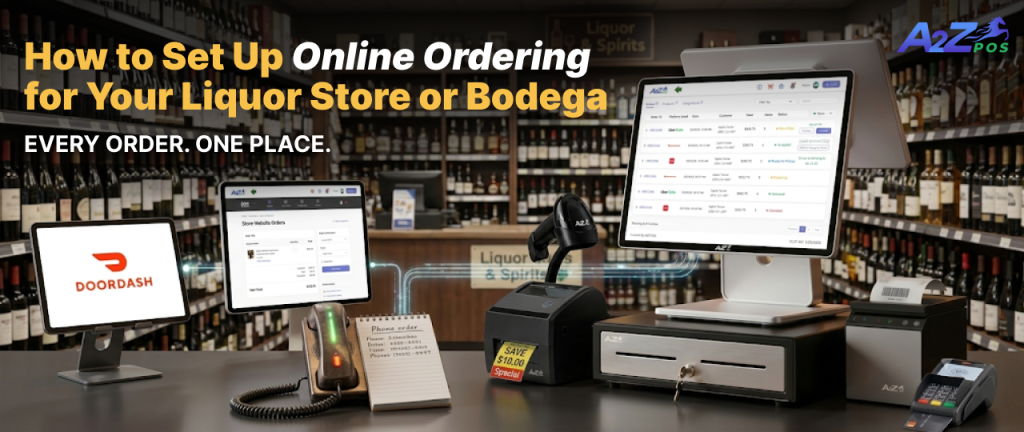
A customer places an order on DoorDash. Another calls in a pickup order you jot down on a sticky note. A third orders through your own website, if you have one, on a separate tablet nobody checks until there is a lull at the counter. By the time all three orders are found, confirmed, and started, fifteen minutes have passed and one of them already canceled.
This is what online ordering looks like without a real setup behind it. Getting it right is not about adding more apps. It is about connecting the ones you already use so they land in one place.
Why Setup Matters More Than the Tools Themselves
Most stores already have access to delivery apps and some form of online ordering. The problem is rarely the lack of tools. It is that each one runs on its own screen, with its own login, disconnected from the register and from each other.
Our software fixes this by pulling every channel into one dashboard, but only if it is set up correctly from the start, not bolted on after the fact.
What You Need Before You Start
A few things should be in place before you turn anything on. If you want to see the full feature set first, A2Z E-Orders covers everything this setup builds on.
Your product catalog needs to be accurate and current. If your online menu shows an item that sold out an hour ago, you will take an order you cannot fill. Your staff also needs someone assigned to watch the order queue during open hours, since a connected system still needs a person confirming and preparing each order.
Finally, confirm your POS plan includes E-Orders, since this sits on top of your existing setup rather than replacing it.
Step 1: Connect Your Delivery Platforms
Start with the delivery apps you already use, Uber Eats, DoorDash, Grubhub, or whichever platforms bring in orders today. Each one gets linked to your account so its incoming orders route to a single screen instead of a separate tablet per app.
This step alone solves the most common complaint store owners have: juggling three or four devices just to catch every order coming in.
Step 2: Turn On Direct Online Ordering
Once delivery platforms are connected, enable ordering directly through your own store, for pickup or delivery, without routing every sale through a third party marketplace and its commission fees. This is where customers order straight from you. Set your available items, your pickup windows, and any delivery radius that makes sense for your store before this goes live.
Step 3: Centralize the Order Dashboard
This is the piece that actually solves the original problem. With Online order management software running underneath it, every channel, in store, delivery, and direct online, feeds into one dashboard.
Inventory updates in real time across all of them, so an item that sells out through a delivery app also disappears from your website at the same moment, instead of staying listed as available somewhere it no longer is.
Step 4: Review Your Channel Reporting
Once orders are flowing in, turn your attention to what each channel is actually doing for the store. Channel performance reporting shows revenue by source, how each one is trending, and how it compares to your in store sales. This is where the reporting side earns its place, not just taking orders but telling you which channels are worth the commission fees and which ones barely move the needle.
If you also want to tighten up how payments are handled across these channels, our breakdown on POS payment processing covers how cards, contactless, and EBT get verified at checkout, worth a look since online orders bring their own payment quirks.
Common Setup Mistakes to Avoid
A few mistakes show up often enough to call out directly.
- Turning on delivery apps before the catalog is accurate. This is the fastest way to sell something you do not have.
- Skipping a test order before going live. Place one yourself on each channel before customers do, so you catch a broken setting before a real order does.
- Leaving no one responsible for the order queue. A connected dashboard still needs a person watching it during busy hours.
- Ignoring channel reporting after the first week. Setup is not finished once orders start coming in. Check which channels are actually worth keeping.
What a Good Setup Looks Like Day to Day
Done right, a staff member glances at one screen and sees every order, no matter where it came from. Stock stays accurate across every channel without anyone updating it by hand. And at the end of the month, real sales order management software tells you exactly which platforms are earning their keep and which ones are just adding fees.
If your store is still running delivery orders on separate tablets or losing track of pickup requests scribbled on paper, it might be time to bring it all under one system.
Schedule a demo and we will walk through what setup looks like for your store specifically.