

Multi Location POS Software: How to Manage Several Stores Without Losing Control
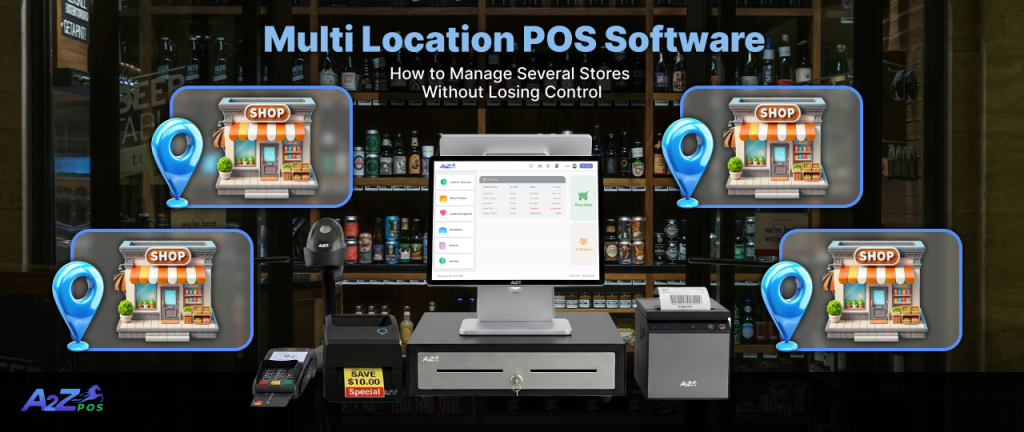
Opening a second store feels like a big win. Then the daily problems start. You cannot be in two places at once, and the numbers from each store reach you in different ways. The right multi store pos software puts every location on one screen, so you always know what is happening.
This guide covers what goes wrong when you grow, what to look for in a system, and how to roll it out.
What Goes Wrong When You Add a Second Store
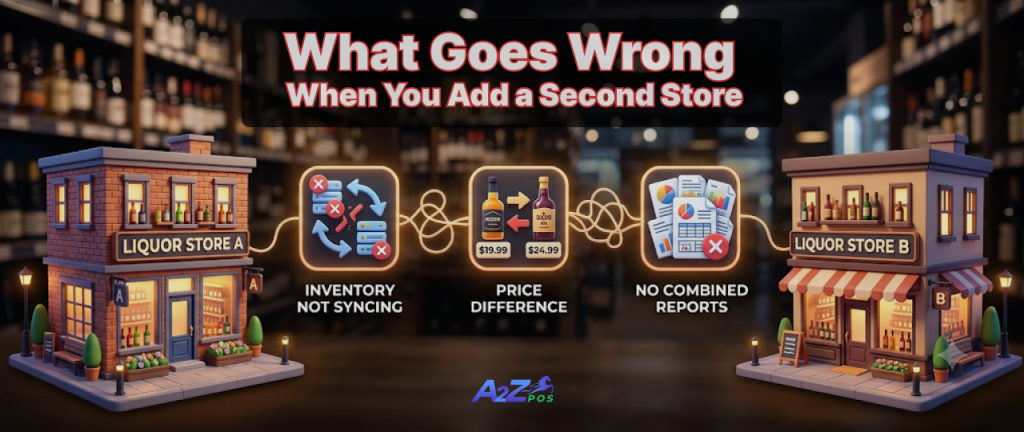
Most owners run into the same problems:
- Stock counts live in separate files, so you never know the real total.
- A popular bottle sells out in one store while another store sits on extra cases.
- Prices and tax rates differ between stores, because each manager changed them by hand.
- Every employee can see more than they need to.
- You cannot tell which store earns the most without hours of work.
Each problem is small on its own. Together they eat up the time you hoped to save by hiring a manager.
Signs You Have Outgrown Your Current Setup
- You call managers to ask for stock counts.
- You keep a separate spreadsheet for each store.
- A price change means visiting or calling every location.
- You do not trust the totals when you add the stores together.
If two of these sound familiar, it is time to look at something built for more than one store.
What Good Software Should Do
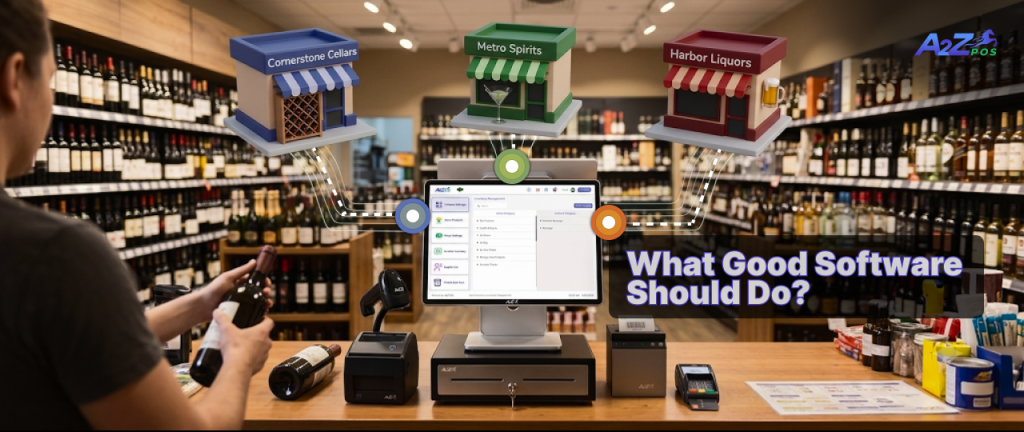
Good pos software for multiple locations keeps your stores in sync. Sales, stock counts, and staff records should update in every store in real time. Four jobs matter most.
Move Stock Between Stores
When one store runs low and another has extra, you should be able to move items in a few minutes. Counts at both stores should update by themselves, so nobody edits a number by hand.
Control Who Sees What
Each manager should see their own store only. Staff should see only what they need to do their job. You, as the owner, see everything.
Change Prices and Taxes Once
A price or tax change should reach every store at the same time. This keeps your stores consistent and saves you from repeating the same task.
Compare Your Stores
You should see sales and profit for every store side by side on one dashboard. That shows you which store needs help and which one is doing well.
A Simple Example
Say your downtown store runs out of a popular whiskey on Friday afternoon. Your second store has twenty cases in the back room.
Without a shared system, you find out when a customer complains. You call the other manager, wait for a count, and arrange a delivery. With one system, you see the stock at both stores in seconds. You start a transfer, and the counts at both stores update on their own.
Why Stock Transfers Matter for Liquor Stores

Liquor stores see sharp swings in demand. A holiday weekend, a local event, or a sale can empty one shelf in a day. Meanwhile another store barely moves the same item.
A transfer lets you use stock you already own. You avoid a rush order, and you avoid losing the sale. Over a year, that adds up.
Questions to Ask Before You Choose
- Can I see every store on one dashboard?
- Can I move stock between stores, and do both counts update?
- Can I give managers and staff different levels of access?
- Can I change prices and taxes for all stores at once?
- What happens if one store loses its internet connection?
- What does it cost to add a third store, and how long does it take?
How A2Z Handles Multiple Stores
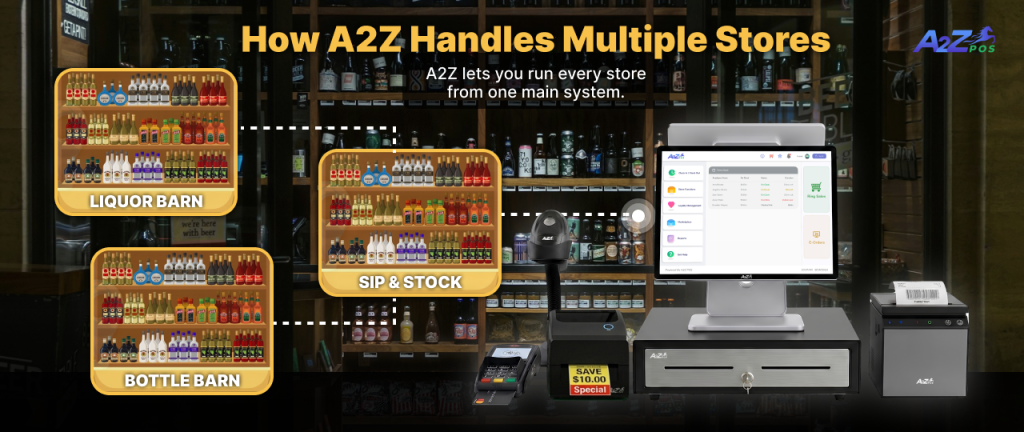
A2Z lets you run every store from one main system. Four features cover the jobs above:
- Multi store stock transfer. Move items between stores in minutes, with counts updating everywhere.
- Branch access control. Give managers permission for their own location. Staff only see their own store.
- Centralized tax settings. Change prices and tax rates across all locations at once.
- Location performance tracking. Compare sales and profit for every store on one dashboard.
You can see the full list on our multi store service page.
Mistakes to Avoid When Growing
- Waiting until the third store to fix your system
- Letting each manager set their own prices
- Giving every manager full access
- Using different product names in different stores
- Never checking the comparison numbers
What to Check Each Week
Once your stores are connected, a short weekly routine keeps things tidy:
- Look at stock levels at each store.
- Review any transfers made that week.
- Compare sales between locations.
- Check who has access to what, and remove anyone who left.
Rolling It Out Across Your Stores
- Start with your main store. Load your products and prices.
- Set manager access for each location.
- Add the second store, then check the stock counts at both.
- Try one stock transfer between the two.
- Review the store comparison after a month.
Stay in Control as You Grow
Growing from one store to several should not mean losing track. A good multi location pos system gives you one view, one set of prices, and clear access for every manager.
If you are planning a second or third store, schedule a demo and we will show you how it works across locations.