

Customer Facing Displays: Why a Second Screen at Checkout Builds Trust
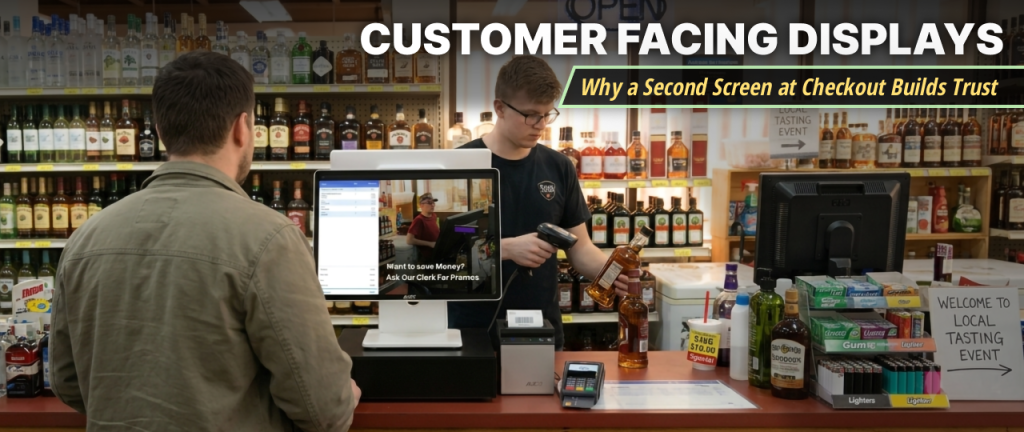
Most pos terminals face the cashier. The customer stands on the other side and waits. They hear the beeps, but they see nothing. Then a total appears, and they have to take your word for it.
A customer facing display fixes that. It is a second screen that points at the shopper and shows the sale as it happens. It is a small piece of equipment, and it changes how checkout feels.
What a Customer Facing Display Does
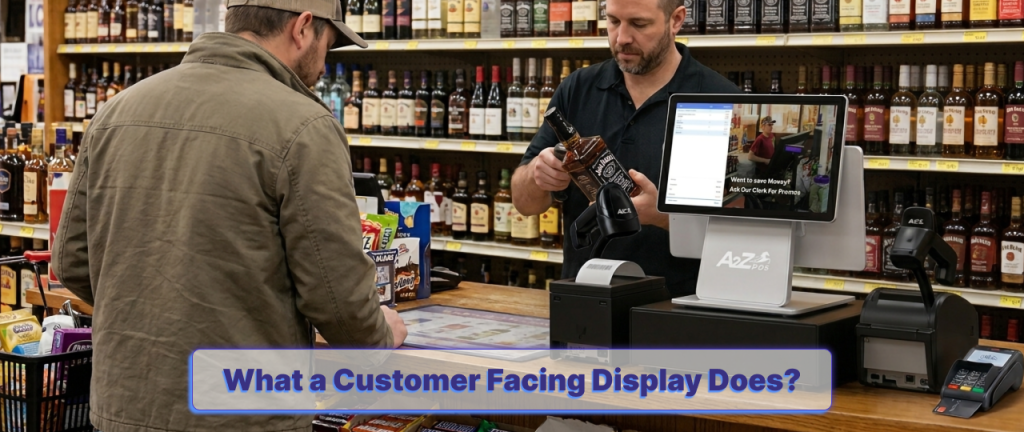
The screen mirrors the sale in real time. As the cashier scans each item, the shopper sees it appear. Here is what shows up on the screen:
- Each item, as it is scanned
- The price of every item
- Any discount, the moment it is applied
- The running total, before payment
- Your store promotions between sales
Nothing is hidden, and nothing is a surprise at the end.
Why It Builds Trust
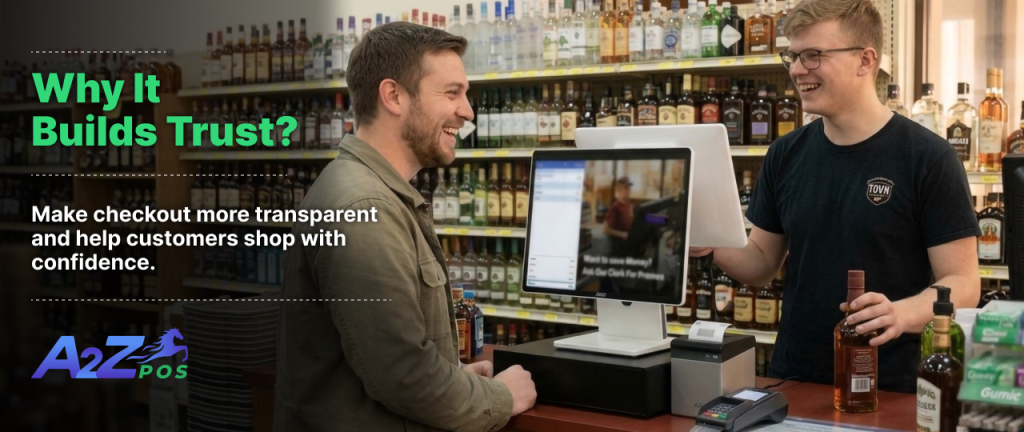
Customers See What They Pay
Shoppers want to know what they are being charged. When they watch each price appear, they have little reason to doubt the total. They also catch mistakes early. A wrong price on a bottle gets fixed at the scan, long before the payment.
Fewer Arguments at the Counter
Many checkout arguments start with one sentence: “That is not the price on the shelf.” With a second screen, the customer spots the problem while the cashier can still fix it. The fix takes a few seconds. Without the screen, it can turn into a long talk with a line building behind you.
A More Professional Look
A second screen tells shoppers that your store is careful and modern. That matters for a corner store or a liquor store that wants to stand out from bigger chains.
Where It Helps Most
Any store can use one, but some stores see the benefit sooner:
- Stores with frequent sale prices, such as liquor stores
- Busy stores with long lines at peak hours
- Stores with a loyalty program to promote
- Stores where cashiers are new and mistakes are more likely
How It Works at the Counter
The flow is simple:
- The cashier scans an item.
- The item and its price appear on the customer side at once.
- Discounts show up when they are applied.
- The total is on screen before the customer pays.
- After the sale, the screen goes back to your promotions.
Good pos hardware should need very little setup. A2Z’s customer screen connects directly to the POS with no extra configuration. You plug it in and it works.
What Happens Behind the Screen
The customer screen is not a separate system. It shows the same sale the cashier is ringing up. That means the price on the customer side always matches the price on the cashier side. Nobody types anything twice, so there is less room for error.
It also means the screen needs no daily upkeep. When the register is on, the screen is on.
What to Look For in a Customer Screen
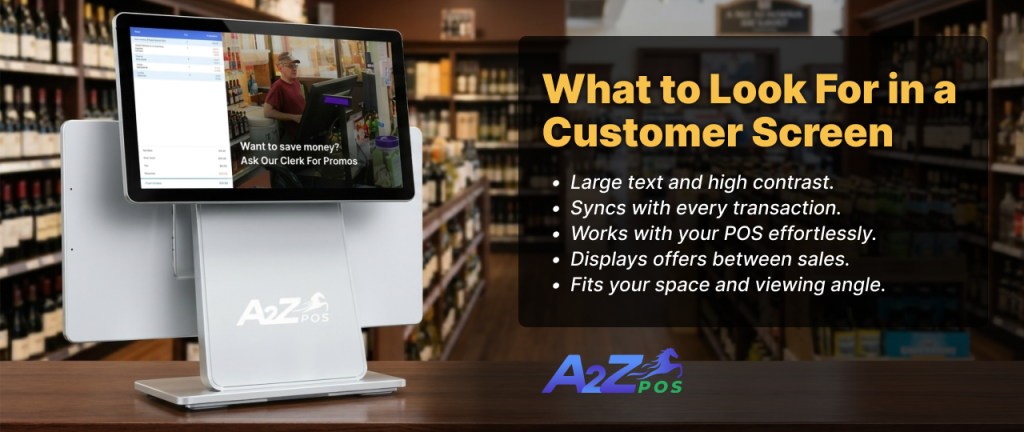
Not every display is the same. Check these things before you buy:
- It is easy to read. Look for large text and strong contrast, so shoppers can read it from a normal standing distance.
- It updates instantly. A screen that lags behind the register causes more confusion, not less.
- It connects to your POS without extra setup. Fewer steps means fewer things that can go wrong.
- It can show promotions. The screen is useful between sales too.
- It fits your counter. Check the size and the angle before you decide.
A2Z includes a customer facing screen in its seven piece hardware bundle. The bundle also has a cashier touch screen and a receipt printer. You get a barcode and ID scanner, a cash drawer, a card reader, and a backup battery too.
Using the Screen to Promote Your Store
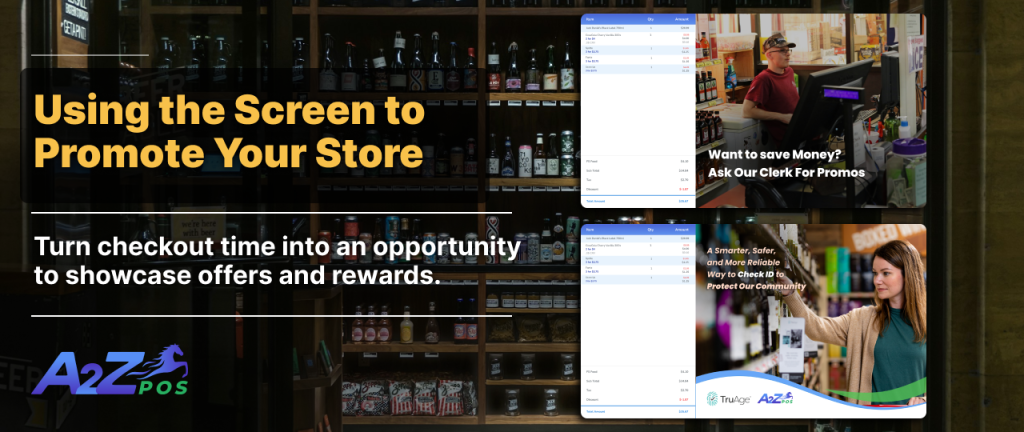
Between sales, the screen does not have to sit empty. The A2Z customer screen can show store promotions, loyalty program details, or your own message.
A few tips help:
- Keep each message short.
- Show one offer at a time.
- Change it every week or two, so regular customers do not tune it out.
- Remove old offers the day they end.
Setting It Up
Place the screen where shoppers can see it without leaning or turning. Angle it slightly toward them. Keep it clear of bags, shelves, and signs. Check it from the customer side before you open.
If you are building a counter from scratch, our counter setup guide lists the other equipment you will need.
A Quick Test Before You Open
Take five minutes to check the screen before your first customer.
- Scan three items and check that each one appears.
- Apply a discount and check that it shows.
- Stand where a customer stands and read the screen.
- Finish the sale and check that the promotions return.
- Ask a staff member to read a price aloud from the customer side.
How Staff Can Use It
The screen helps most when your cashiers use it. Here is what they can do:
- Point to the screen when they say the total.
- If a shopper asks about a price, show it on the screen.
- Let customers watch each item as it is scanned.
- Greet the customer first, then start scanning, so they know to look.
It takes only a second, and the customer sees the price for themselves.
Common Mistakes
- Placing the screen too far away. If a customer has to lean or turn, they will not look. Angle it toward them.
- Leaving old promotions on. Shoppers may ask for a deal that has ended. Remove each offer the day it finishes.
- Using small text. Customers should be able to read it from where they stand.
- Skipping the test. Five minutes before opening saves you a messy first morning.
- Not telling staff what it is for. If cashiers ignore the screen, customers will too.
Give Your Customers a Clear View
A second screen is one of the simplest ways to make checkout feel fair. Shoppers see the price, the discounts, and the total. You get fewer arguments and a more professional counter.
When you compare pos features, check that a customer screen is included and that it works with your register. If you want to see how it looks at a real counter, schedule a demo and we will show you.